Attendance
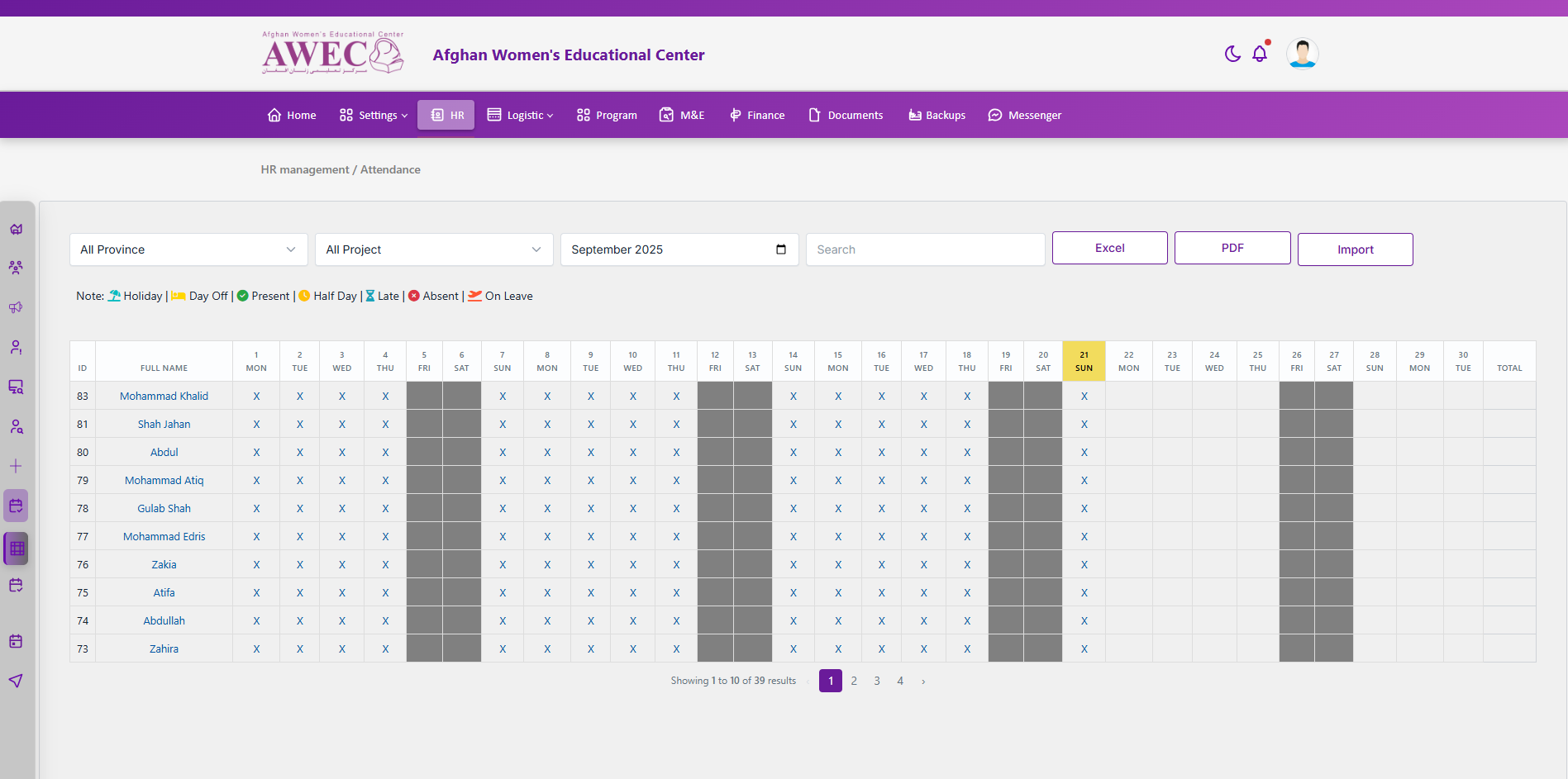
View and manage attendance by month with filters, exports, and per-employee sheets.
Access and roles
- Admin/HR: full grid for all employees with Province/Project filters, Search, Excel/PDF export, and Import.
- Employee: sees only their own row for the selected month; no admin-only controls.
Filters and controls
- Month: pick the month to display (applies to all users)
- Province (admin only)
- Project (admin only)
- Search (admin only)
- Export: Excel (admin only)
- Export: PDF (admin only)
- Import (admin only)
Grid behavior
- Columns: ID, Full Name, then one column per day in the selected month, plus Total.
- Weekends (Fri/Sat) are greyed out.
- Today is highlighted (yellow background) if within the selected month.
- Cell icons legend:
- Holiday: umbrella
- Day Off: bed
- Present: check-circle
- Half Day: clock
- Late: hourglass-half
- Absent: times-circle
- On Leave: plane-departure
- Empty future dates show a blank placeholder.
Actions
- Open employee sheet: Click an employee name to open their Attendance Sheet modal (admin and employee self-view).
- Edit day entry (admin): Click a day cell to open edit for that date/employee.
- Pagination (admin): Pager below the grid for employees list.
Employee Attendance Sheet modal
- Header shows employee details (position, agreement #, joining date, duty station).
- Timesheet table: Date, Start Time, Finish Time, Hours Worked for the selected month.
- Project charge percentages: set % to charge per project and Save (if allowed).
- Leave Balance: summary table per leave type (Beginning/Accrued/Used/Balance) — shown in the same modal section.
Notes
- Weekend columns are non-editable and shown as grey “Weekend”.
- For non-admin users, only their own row is visible; no employee list or admin-only filters.
Troubleshooting
- Missing employee? Check user status/contract dates and applied filters.
- Icons show X where no record exists for a past day.